20 Home Assistant Marketplace Integrations for More Useful Smart Home Dashboards
These 20 community integrations add local device control, energy estimates, dashboards and automation options to Home Assistant.
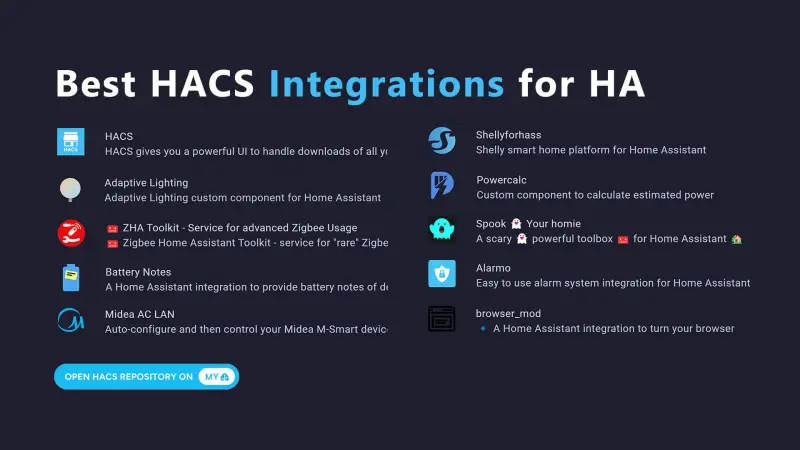
Community integrations can make Home Assistant fit the way a household actually works: tracking battery changes, bringing a remote instance into one view, or adjusting lights as daylight shifts. The 20 options below cover practical home controls as well as dashboards for weather, sport, travel and hobbies.
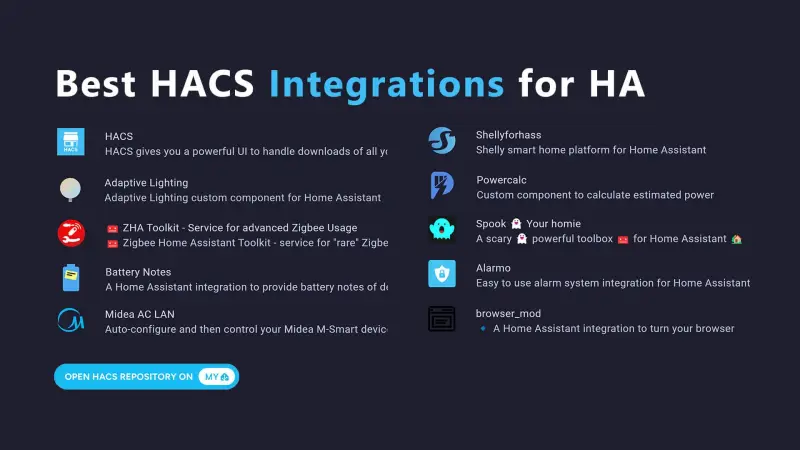
Home Assistant supports thousands of built-in integrations. Its community store adds another layer of custom integrations, components and themes. In Home Assistant 2026.11 and newer, HACS has been renamed Marketplace and is built in. Community projects can offer useful features, though they are maintained outside the core platform, so check the project’s documentation and install with care.
Installing a community integration
On Home Assistant 2026.11 or newer, open Settings → Marketplace. The first visit requires accepting a disclaimer. Search by name, choose the integration and select Download. Then go to Settings → Devices & Services → Add Integration to configure it.
On version 2026.10 or older, install HACS first. The remaining steps are similar, though the store name and menu location differ. Some entries below are integrations; others are companion dashboard cards. Where both are listed, the integration supplies data and the card presents it visually.
Lighting, energy and device upkeep
1. Adaptive Lighting
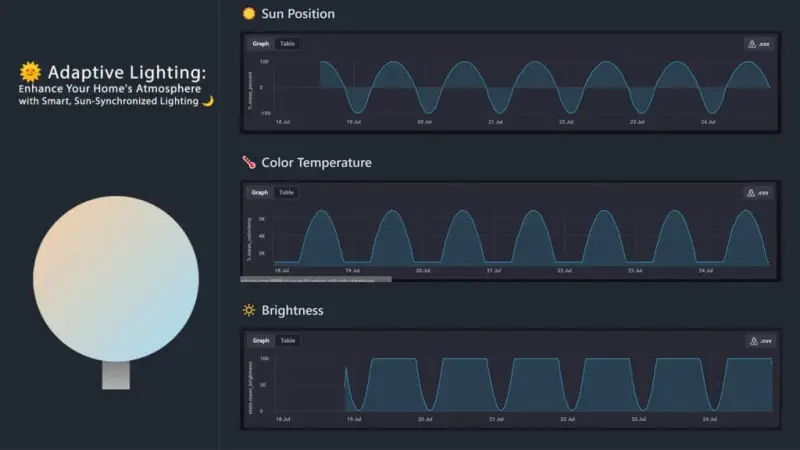
Adaptive Lighting adjusts compatible smart lights’ brightness and color temperature as the day progresses. The aim is to follow the character of natural daylight, with warmer tones in the morning and evening and cooler, brighter light around midday. That can make a room feel more comfortable without repeated manual changes.
It’s a strong fit for rooms where lights are used throughout the day. The integration’s value comes from treating lighting as a changing part of the home rather than a fixed scene. Find it through the Adaptive Lighting Marketplace listing or visit the project on GitHub.
2. Powercalc
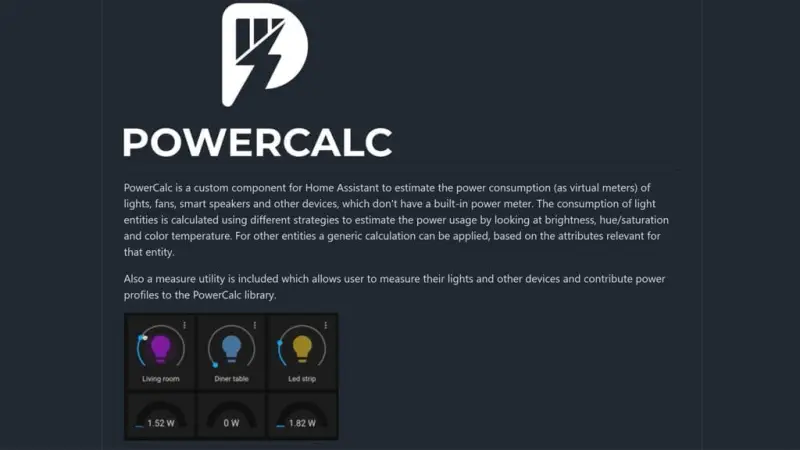
Powercalc estimates electricity use for devices that don’t report their own energy consumption. It uses power profiles and device states to calculate estimated use. For a dimmable bulb, for example, the estimate can change with brightness rather than assuming the light always draws the same amount.
The result depends on the quality of the input data, so treat the figures as estimates. For households building an energy dashboard, it can help fill gaps where energy-monitoring hardware isn’t available. You can graph the data with an ApexCharts card. The integration is maintained by bramstroker; see its GitHub project.
3. Battery Notes
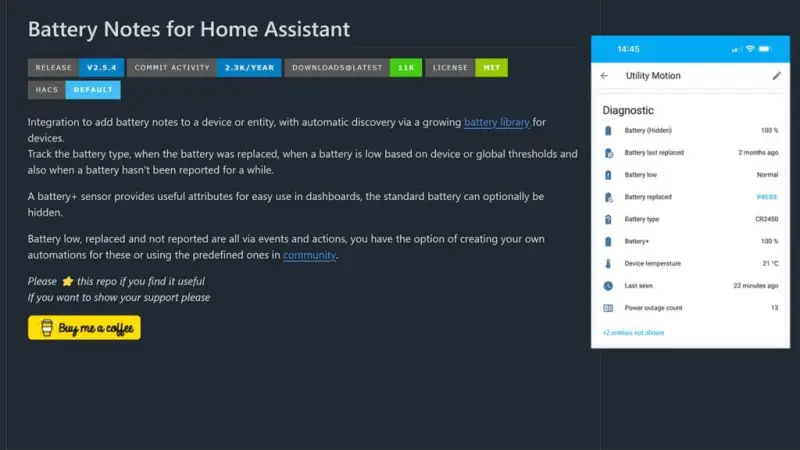
Battery Notes keeps battery details alongside the devices that need them. Add information such as battery type and replacement date, then use Home Assistant notifications to help keep track of low or ageing batteries. That’s useful once a home has enough sensors and remotes for replacement dates to become hard to remember.
Battery levels can also be plotted over time with an ApexCharts card. Get Battery Notes from its Marketplace listing or view the project on GitHub.
4. Midea Smart AC
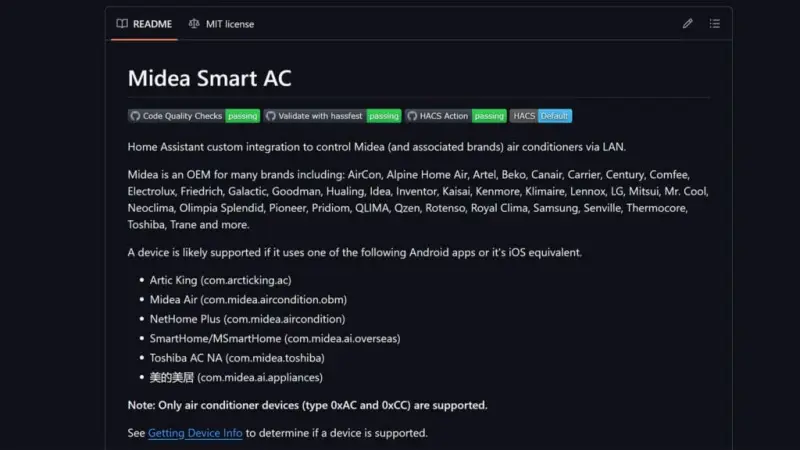
This integration controls compatible Midea air conditioners over the home network, without relying on the cloud for ongoing operation. It can also work with units sold under names including Comfee, Carrier, Electrolux, Friedrich, Toshiba and Trane. Support depends on the model.
Available controls and sensors vary by unit. They may include sleep, eco, boost and away presets, fan speeds, swing angle, indoor humidity, power and energy readings, self-cleaning and filter alerts. The setup process uses Home Assistant’s interface and can discover units on the network or accept a device ID, IP address and port manually.
Newer V3 units need a token and key, which the integration retrieves from the Midea cloud during discovery. After that setup step, control runs locally. It supports air conditioners with device types 0xAC and 0xCC. See the Midea Smart AC project or its Marketplace listing.
5. Tuya Local
Tuya Local communicates with supported Tuya Wi-Fi devices over the local network. It can provide quicker control and expose functions that aren’t available through the cloud API. It does not, by itself, stop devices from sending status information to Tuya’s cloud. Tuya Zigbee devices are a separate case: they already communicate locally through a Zigbee coordinator.
The integration supports more than 1,000 devices, including plugs, switches, lights and appliances. Setup needs the device ID, IP address and local key. A cloud-assisted setup can retrieve the key after you sign in with a Tuya or Smart Life account; a Tuya IoT developer account isn’t required for that method.
Pair the device in its app before adding it to Home Assistant, because re-pairing changes its local key. Many devices allow only one local connection at a time, so remove an existing local integration before switching. Check device support in the Tuya Local project or open its Marketplace listing.

Home controls and connected systems
6. ZHA Toolkit
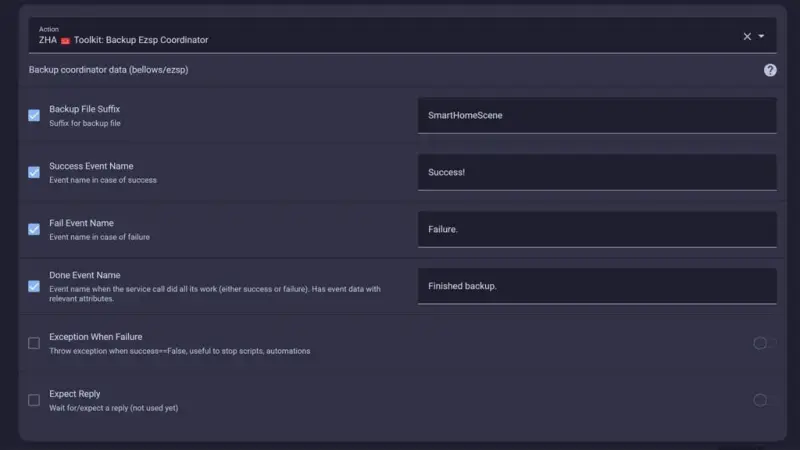
ZHA Toolkit adds advanced controls for users managing Zigbee devices through Home Assistant’s ZHA integration. It supports lower-level network tasks, including binding device clusters, removing bindings and configuring custom reporting for attributes such as battery level or sensor readings.
It also includes backup and restore functions for Zigbee network data. That extra control comes with a learning curve, so it’s best suited to users who understand their device setup and want to manage how devices communicate. Browse the ZHA Toolkit project or its Marketplace listing.
7. Remote Home Assistant
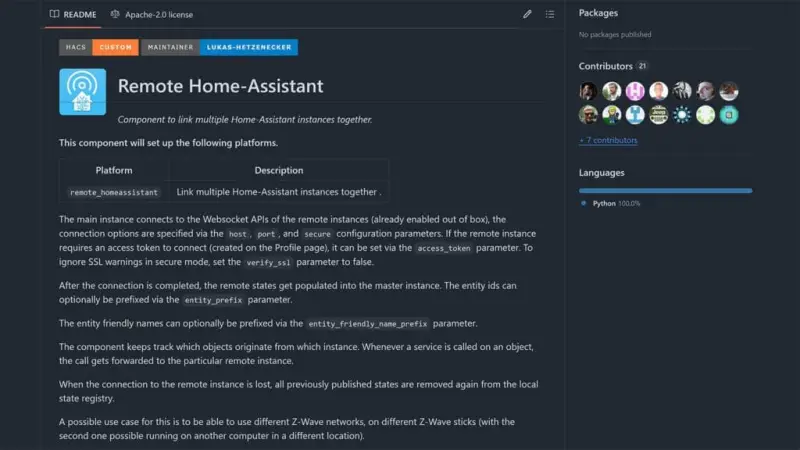
Remote Home Assistant links separate Home Assistant instances so they can be monitored and controlled from a central setup. That can suit a household with more than one property, or someone who wants to bring an office and home installation together.
Configuration is relatively straightforward, but deciding what to expose to the main instance takes some thought. Limiting the shared entities to what you actually need keeps the central view easier to manage. Visit the Remote Home Assistant project or its Marketplace listing.
8. Spook
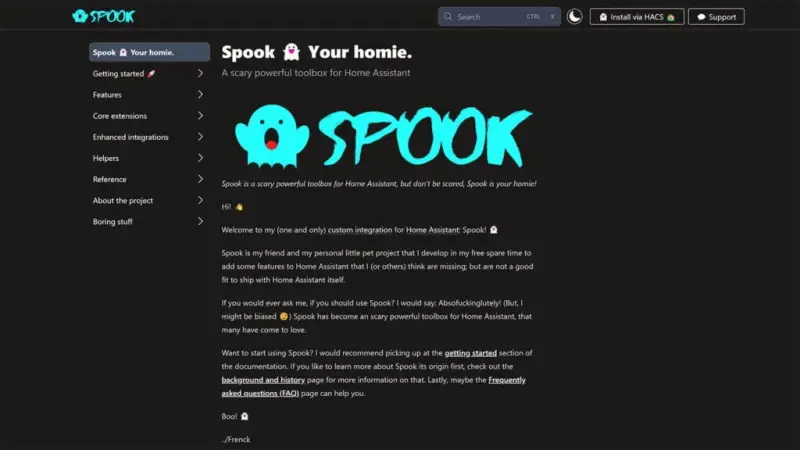
Spook expands Home Assistant with extra actions for automations and scripts, added devices and entities, and more functions for templates. It can expose information about the Home Assistant Cloud connection, giving automations and dashboards more data to work with.
It also watches the Home Assistant instance for potential problems and reports them through the repairs dashboard. Some capabilities reach into the Home Assistant database, including restoring missing energy data. That’s a powerful feature, so approach database changes with care and consult the project documentation first. Spook is developed by Frenck; see the GitHub project or its Marketplace listing.
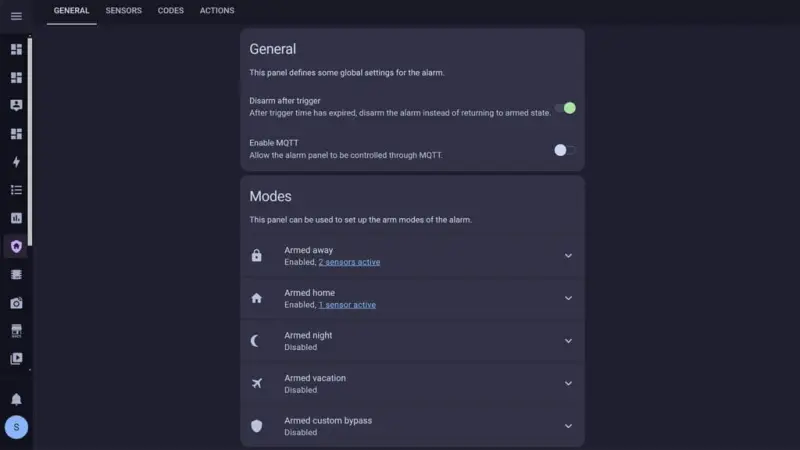
9. Alarmo
Alarmo provides an interface for setting up and managing a home alarm system with Home Assistant. It works with sensors and supports arming and disarming, notifications and automation triggers. Custom actions can respond to alarm events, such as switching lights or sounding an alarm.
It’s a flexible option for a DIY setup, but its usefulness depends on configuring sensors and responses to suit the home. Read the Alarmo setup guide, then find the integration at its Marketplace listing or on GitHub.
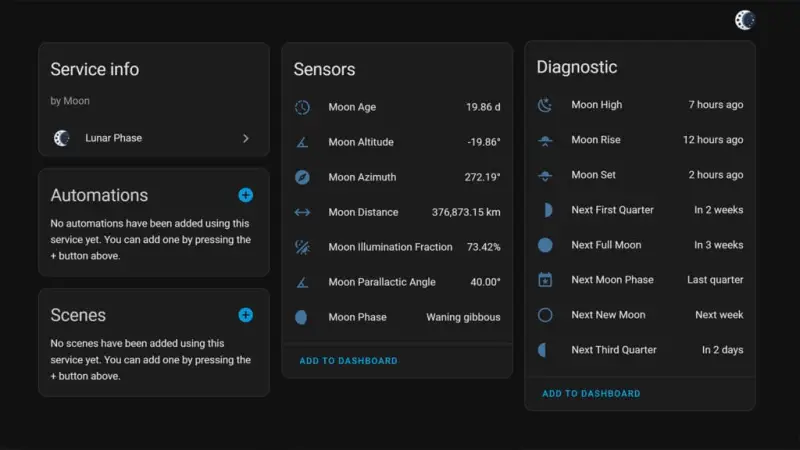
10. Lunar Phase
Lunar Phase adds a detailed set of moon data for a configured location. Sensors cover the current phase, illumination percentage and lunar age, plus moonrise and moonset times. It also provides dates for the next new moon, full moon, first quarter and third quarter.
For users who want more observational detail, optional sensors report altitude, azimuth and parallactic angle. It’s a focused addition for astronomy dashboards or automations tied to lunar events. Find it on GitHub or through the Marketplace listing.
Dashboards, weather and things to follow
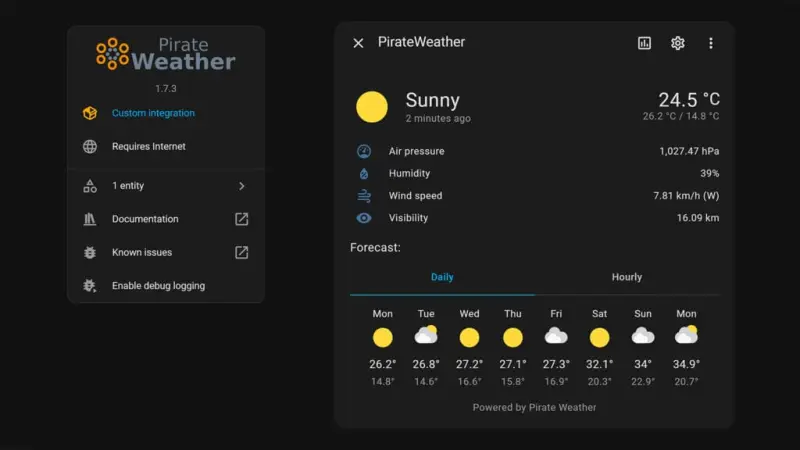
11. Pirate Weather
Pirate Weather brings local conditions and forecasts into Home Assistant. Its sensors can cover temperature, feels-like temperature, dew point, humidity, wind speed and gusts, wind direction, cloud cover and barometric pressure. Forecast data includes minutely, hourly and daily views, with precipitation type, intensity and probability among the available details.
Other data includes UV index, visibility, sunrise and sunset, along with severe weather alerts. The service uses an AWS back end run by the developer; keeping the API free depends on that service continuing to be supported. Users can support the project through its sponsor page. See the Pirate Weather project or its Marketplace listing.
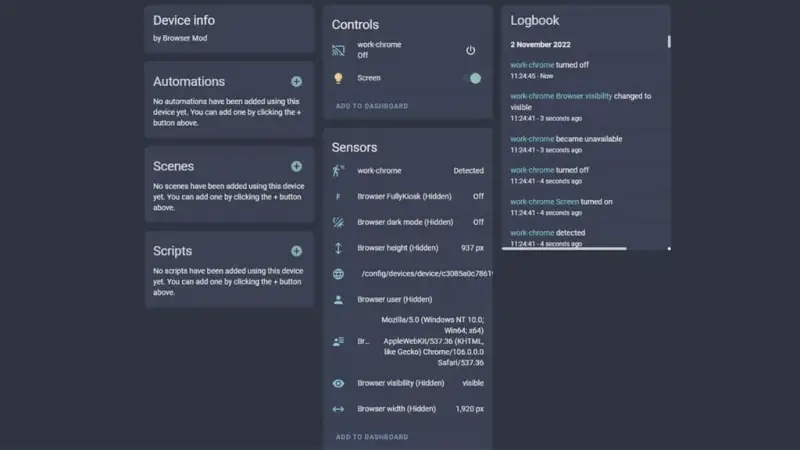
12. Browser Mod 2.0
Browser Mod connects Home Assistant with its browser sessions, adding device tracking, notifications and controls for browser features. It can turn a browser into a media player entity for sending media from Home Assistant, adjust screen brightness and target alerts to a particular session.
It also supports per-device themes and changes to the Home Assistant interface, including custom popups that can replace the standard more-info dialog. For setup details, see the Browser Mod guide and the guide to custom popups. The project on GitHub and its Marketplace listing provide access to the integration.
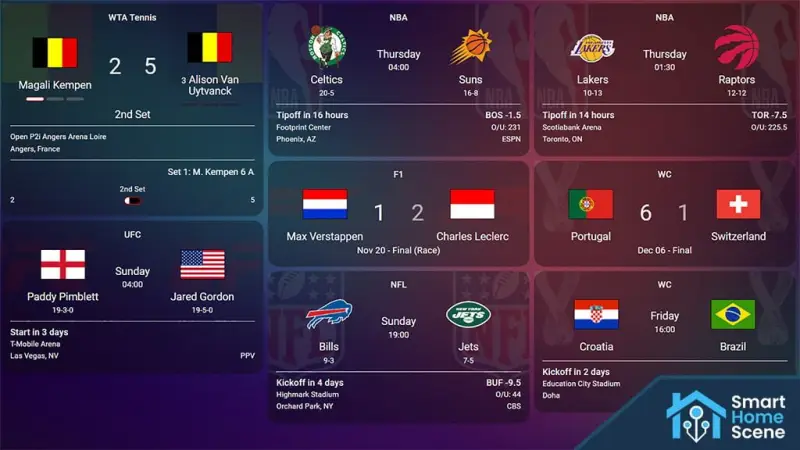
13. Team Tracker and Team Tracker Card
Team Tracker creates a sensor for each team you follow, with live game details such as score, possession and time remaining. It covers a range of professional and college sports, including the NFL, NBA, MLB, NHL and UFC.
The companion Team Tracker Card turns those sensor details into a scoreboard-style dashboard display, with layouts suited to different sports. The integration supplies the data; the card makes it easier to scan. Explore Team Tracker and the card project, or open their respective integration listing and card listing.
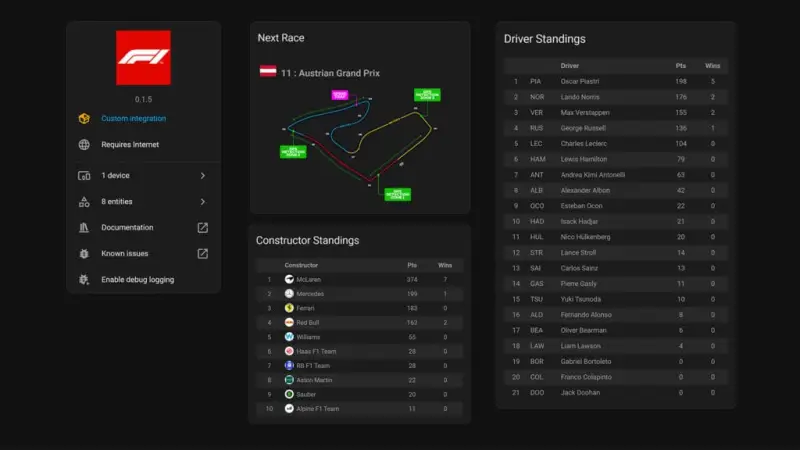
14. F1 Sensor and FormulaOne Card
For Formula 1 followers, the F1 Sensor provides data that automations can use. A setup might dim lights at race start, send a notification when qualifying ends or announce podium finishers through a speaker.
The FormulaOne Card serves a different purpose: it displays information such as a countdown to the next Grand Prix and driver standings in a graphic dashboard view. Use the sensor for automation triggers and the card for a quick visual check. Find F1 Sensor and the FormulaOne Card on GitHub, or access their sensor listing and card listing.
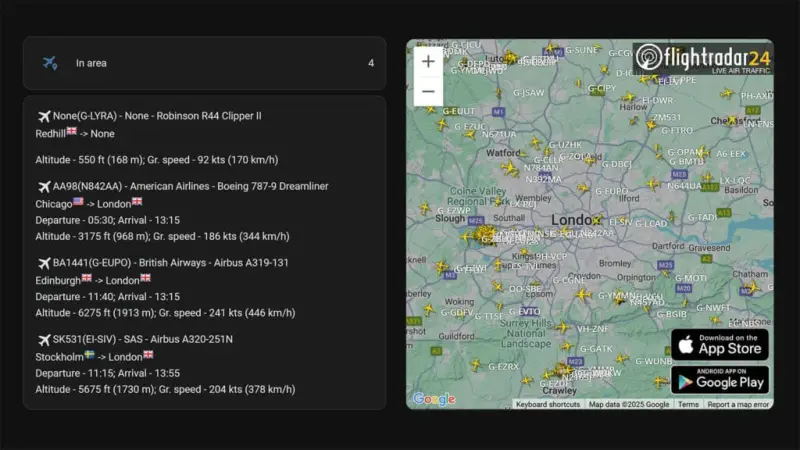
15. Flightradar24
Flightradar24 brings air traffic data into Home Assistant without requiring a Flightradar24 subscription. It can track aircraft in a chosen area or follow specific planes wherever they are. Sensors can report details such as callsign, destination, altitude, speed, heading and aircraft type, as well as the number of flights in a monitored area.
Binary sensors can indicate when a tracked flight is active or enters and exits an area. Events for entry, exit, landing and takeoff give automations more precise triggers, and the integration can create a device tracker. Visit the project on GitHub or its Marketplace listing.
Specialist equipment and routines
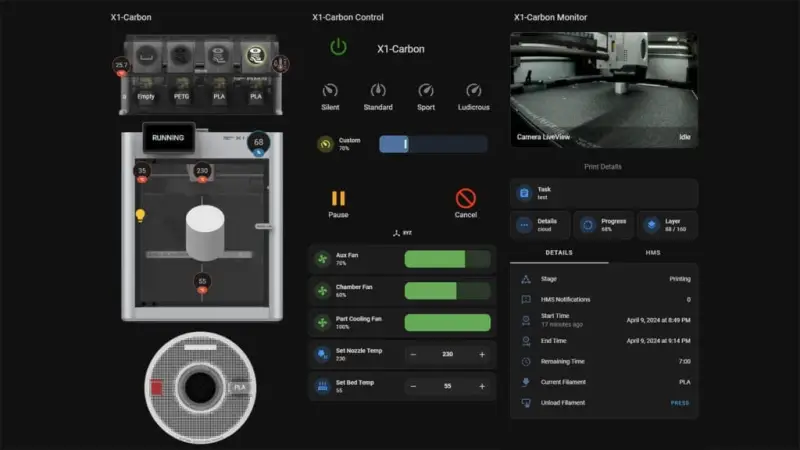
16. Bambu Lab
The Bambu Lab integration brings printer status and print-job data into Home Assistant. Sensors can report chamber and nozzle temperatures, fan speeds, print progress, material weight and length, and job start, elapsed, remaining and end times. It can also make the printer camera available for a live dashboard view.
Users can monitor and control the printer and printing process from Home Assistant, or use the exposed entities as automation triggers. That makes it useful for keeping an eye on a print from another room and building alerts around job status. See the Bambu Lab project, its Marketplace listing, and this dashboard example.
17. Dreame Vacuum
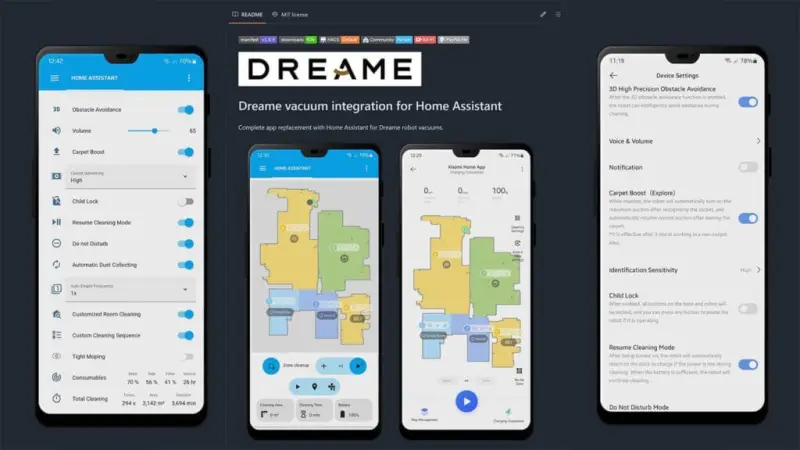
Dreame Vacuum adds cleaning controls, schedules, progress, location and battery status to Home Assistant. It exposes a broad set of monitoring and control entities, and the vacuum’s map can be viewed in Home Assistant.
The integration supports almost all Dreame models, along with some Xiaomi and Mova robot vacuums. Check model compatibility before setting it up. The Dreame Vacuum project and its Marketplace listing are the places to start.
18. Proxmox VE
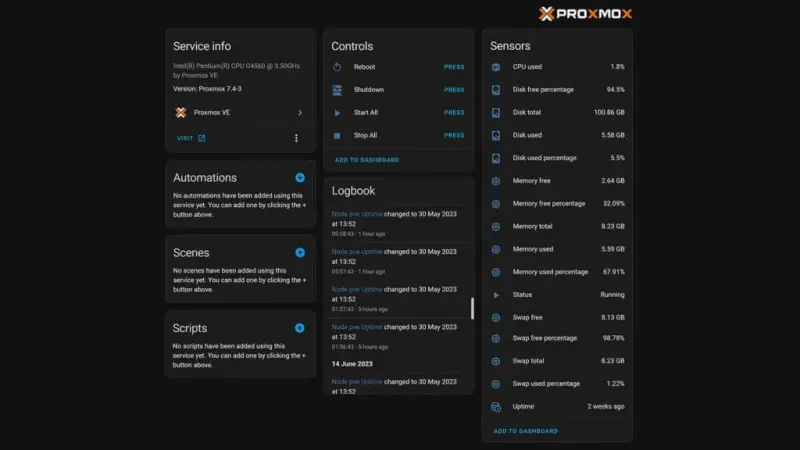
This integration connects Home Assistant with Proxmox Virtual Environment to monitor virtual machines and containers. It reports their status and resource use, and includes controls that can be used to manage instances. Automations can, for example, start or stop a selected instance based on time or system load.
It provides more sensors and control entities than the built-in Proxmox integration. Monitoring host temperatures needs additional adjustments, described in this temperature monitoring guide. For setup and control, see the Proxmox VE guide, the GitHub project or its Marketplace listing.
19. Garmin Connect
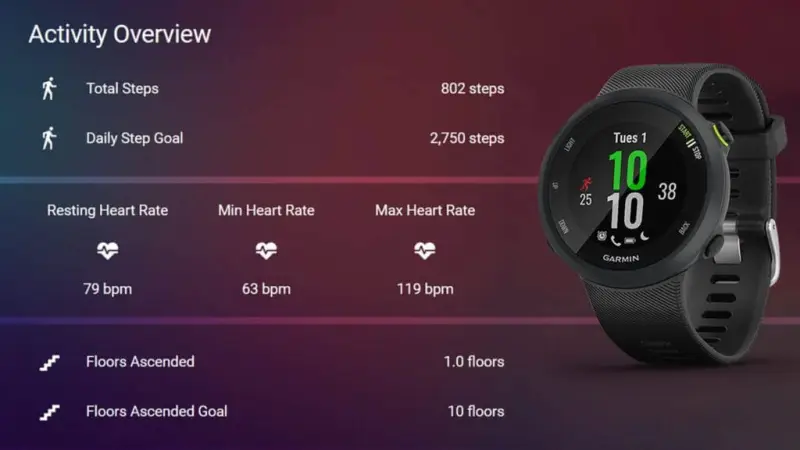
Garmin Connect brings fitness and health measurements into Home Assistant, including steps, sleep and heart rate. Those readings can sit alongside smart home data and serve as automation inputs—for instance, changing lighting to create a calmer setting after an intense workout.
See the Garmin Connect project or find it in the Marketplace.
20. Presence Simulation
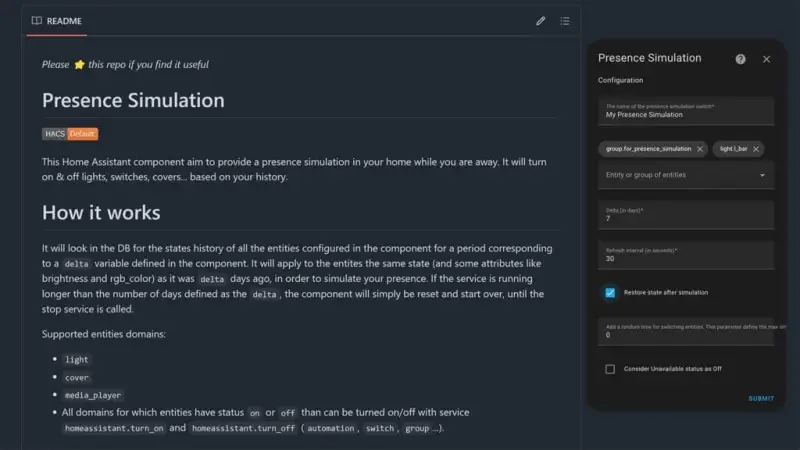
Presence Simulation varies lights and other devices to make a home appear active while residents are away. It switches selected devices on and off according to randomized patterns based on typical activity. That can be useful during a holiday or another extended absence.
The effect depends on which devices you include and how convincing their usual routines are. Find the Presence Simulation project or open its Marketplace listing.
The strongest picks depend on what you want Home Assistant to do. Adaptive Lighting and Battery Notes support everyday routines; Tuya Local and Midea Smart AC add local device control; Powercalc fills in missing energy data. Start with a specific need, check compatibility and project instructions, then add the integration that solves it.